

The Parent's Guide to Google Classroom and School Apps
 November 12, 2026
-
 6 Min
Where the Homework Lives, What to Check, and When to Step Back
If your child comes home and says "it's on Google Classroom," you are not alone if your first thought is: what does that actually mean? Most Ontario classrooms now run on Google Classroom, and the homework, the announcements, and the due dates all live inside it. You do not need to become a tech expert to stay on top of it — just to know where to look, what matters, and how much checking is the right amount. Here is the plain-language version, from a teacher who uses it every day.
1. What Google Classroom actually is
Google Classroom is a free online space where a teacher posts assignments, announcements, and learning materials, and where students hand in their work. Think of it as the digital version of the classroom itself: the teacher's desk, the homework board, and the hand-in tray, all in one place. Your child logs in with their school board account — not a personal Gmail account — and each subject or class shows up as its own tile. Inside a class, everything the teacher assigns lives in one place, so nothing gets lost in a backpack. It also connects to Google Drive, Docs, and Slides, which is where most of the actual work gets typed up.
2. The three tabs that matter most
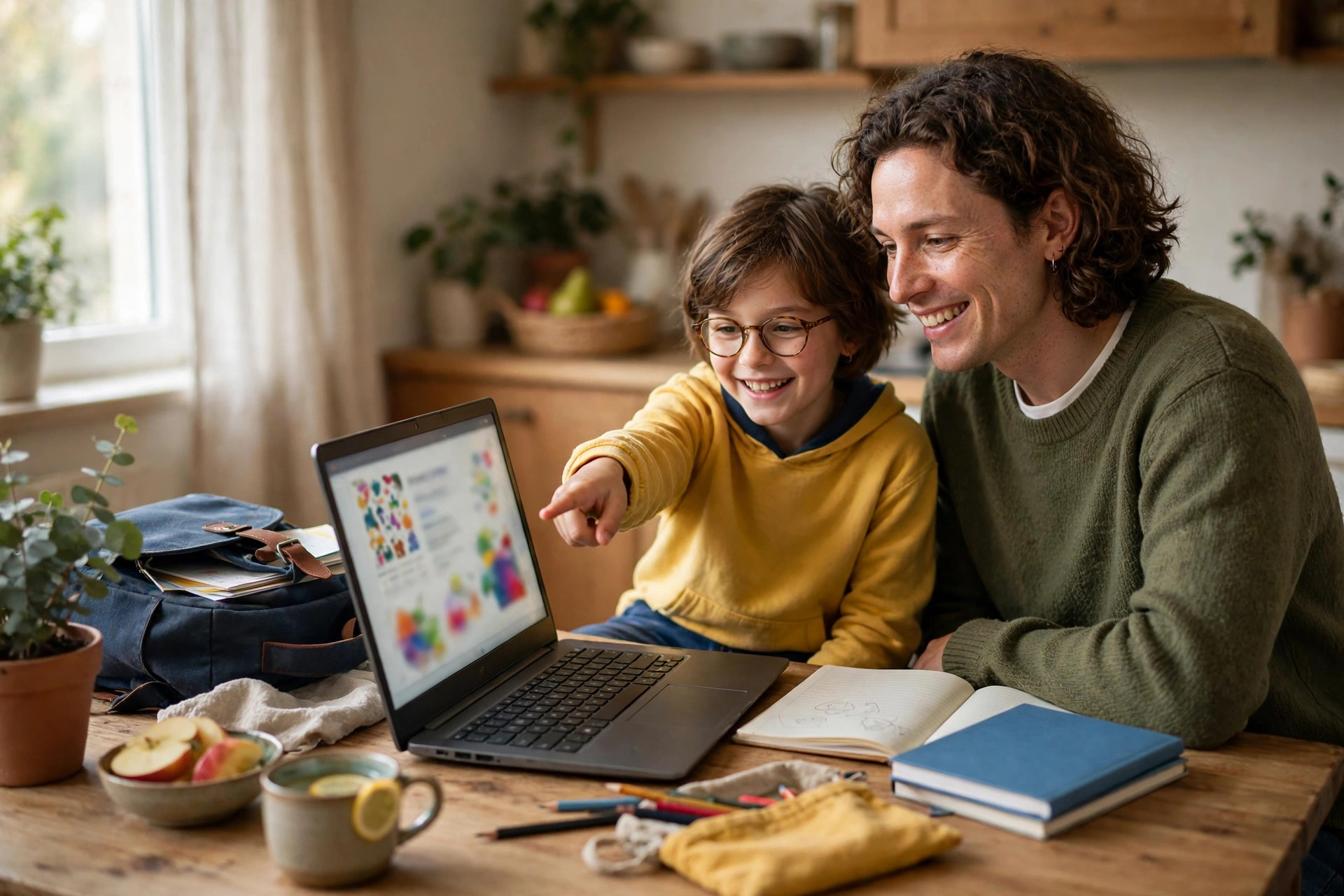
Once you are inside a class, there are three places worth knowing. The Stream is the announcement board: the teacher posts reminders, links, and messages here, and students can ask questions. The Classwork tab is the important one — this is where every assignment is listed, organized by topic, with its due date and instructions. If your child says they have no homework, this is where you check. The People tab simply lists the teacher and the students in the class. Sit beside your child once and have them walk you through these tabs. Five minutes of that tour will save you a dozen confused evenings later.
3. How to check assignments and spot missing work
The fastest check takes about two minutes. Open the Classwork tab: each assignment shows whether it is assigned, turned in, graded, or missing. Google Classroom also has a "To-do" view that pulls together everything due across all of your child's classes, with missing items flagged — the view to check on a Sunday evening or before a progress report comes home. If an assignment says "Missing," do not panic. Sometimes the work is done but was never clicked "Turn in," the single most common reason a finished assignment shows as missing. The fix is one button. If the work genuinely is not done, help your child make a small plan: what is due first, how long will it take, and when will they do it. Fall progress reports go home in October and November, so a quick Classroom check the week before is the best way to avoid surprises.
4. Guardian email summaries — the feature most parents don't know about
Here is the feature that changes everything: teachers can invite you as a guardian, and Google Classroom will then send you regular email summaries of your child's work. A guardian summary shows upcoming work, missing work, and recent class activity — no login needed, and no access to your child's account. You can choose daily or weekly summaries. If you are not receiving them, ask your child's teacher to add your email address as a guardian; the teacher sends an invitation you accept from your inbox. One email a week, a two-minute scan, and you know exactly where things stand.
5. The other apps your child's school might use
Google Classroom is the hub, but it is rarely the only app in play. Your child's school or teacher may also use a messaging app for notices and newsletters, a parent portal for report cards and attendance, or a separate reading or math practice app the teacher has assigned. The exact mix varies from school to school and even from class to class, so do not assume every family is using the same set. The practical move is simple: ask your child's teacher for the short list — which apps the class actually uses, and which one is for parents versus students. Write the list down, save the logins your child needs in one safe place, and ignore every other app that comes home in a flyer unless the teacher says it matters.
6. How much checking is the right amount — and quick fixes when things go wrong
The goal is a routine, not surveillance. A weekly check-in works for most families: once a week, sit with your child, open the To-do list together, and talk through what is due and what is missing. Daily hovering teaches your child that you are the one keeping track, not them. When something goes wrong, the fixes are usually simple. Locked out? Your child's school board account password is reset through the school or the teacher, not through Google. An assignment that will not open? Try a different browser, or the Classroom app on a phone. Work that vanished? Check Google Drive, where auto-saved Docs usually live even if Classroom looks empty. And if a tech problem is blocking real homework, a short note to the teacher buys your child time.
7. How tutoring can help
Sometimes the problem is not the app — it is the work inside it. If your child is staring at a Classroom assignment they do not understand, or if the missing-work list keeps growing even though they are trying, that is a learning gap, not a technology problem. An Ontario-certified teacher can sit with your child, open the actual assignments from their real classes, and work through them together — building the reading, writing, or math skills underneath, and teaching your child how to organize the work itself. A free trial session is a good way to see whether that kind of help fits: one session, online or in person in Brampton, and an honest read on where your child stands.
Google Classroom is not complicated once someone shows you around — and your child is the best tour guide you have. One walkthrough together, guardian summaries switched on, and a calm weekly check-in will keep you in the loop without turning homework into a nightly battle.
Try a Free Session
The best way to see if tutoring is right for your child is to try it. Book a free trial session with one of our Ontario-certified teachers — online or in person in Brampton — and get an honest sense of where your child stands and what would help most.
Prefer to talk first? Call (647) 624-8393 or message us on WhatsApp.